





The NBA 2K27 face scan feature lets you bring your own likeness into the game, making your MyPLAYER more realistic and personalized. Whether you’re new to the process or a vet at it, scanning your face in NBA 2K27 is easier than ever with the 2KHQ app. In this guide, we’ll cover how to complete a face scan step-by-step, tips for the best results, and how to troubleshoot and fix common errors when uploading your scan.
How to Scan Your Face in NBA 2K27
- Set up your MyPLAYER account and connect it to both NBA 2K and NBA 2K HQ
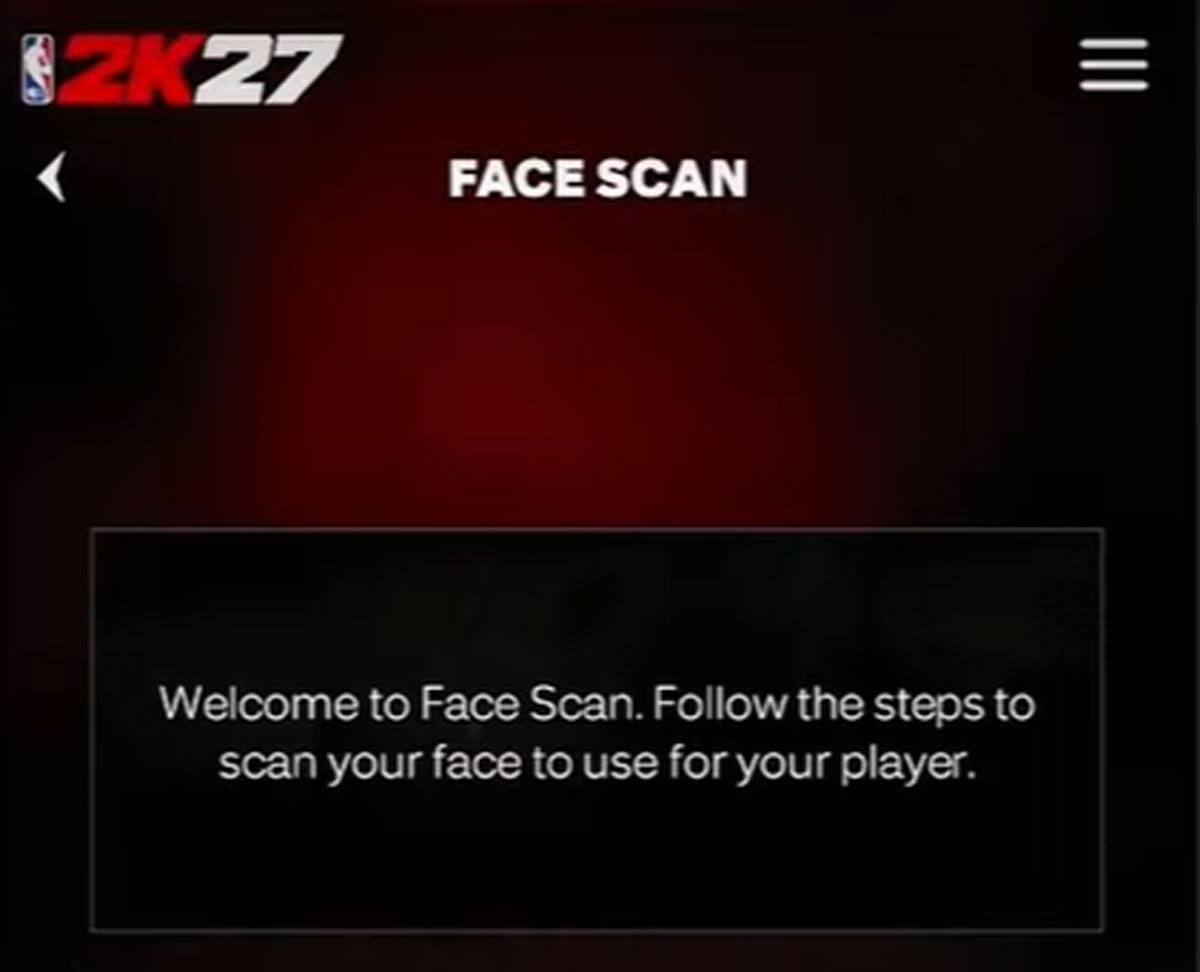
- Open NBA 2K HQ and select Face Scan from the home page, under Login Reward and Daily Rivals.
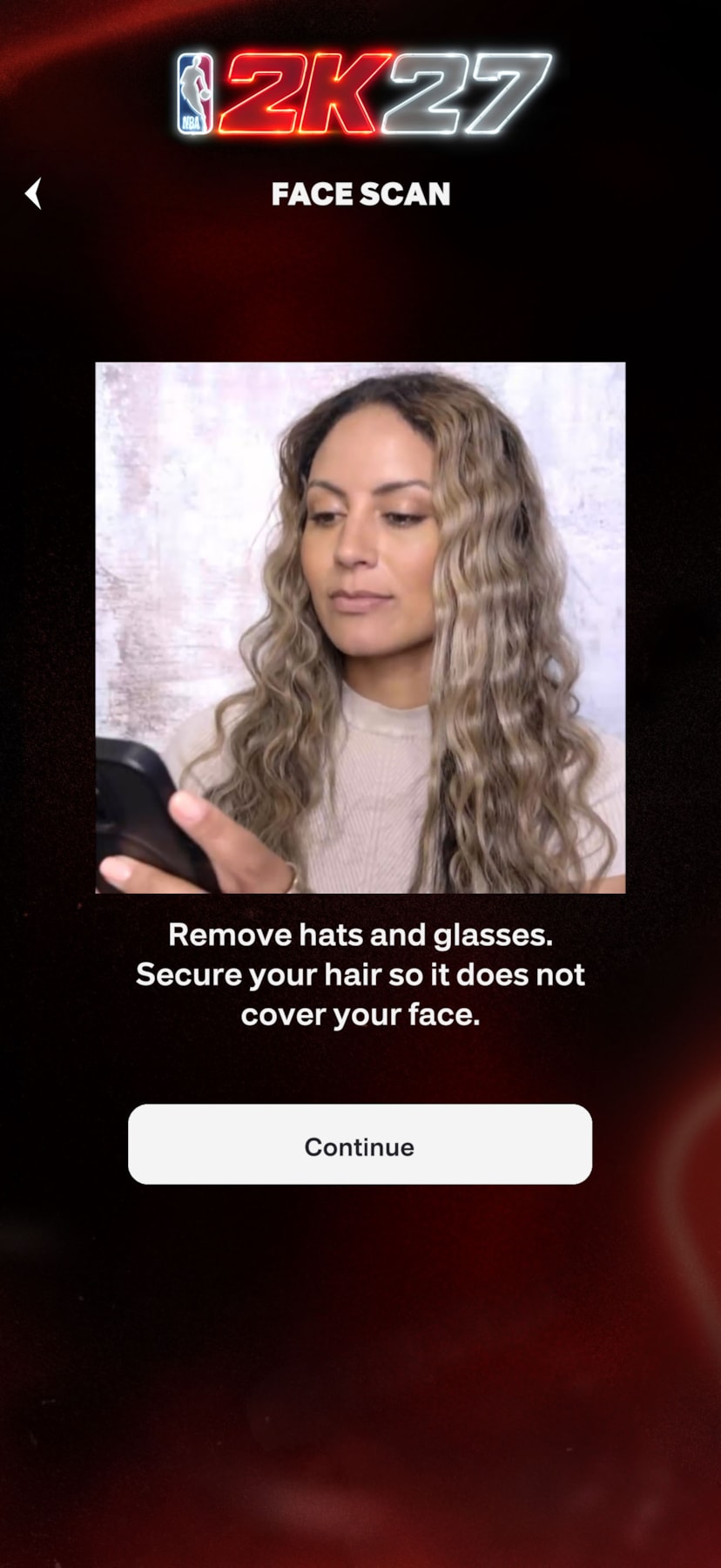
- Make sure your face is in even lighting from the front. Avoid backlight or shadows on your face. Avoid cluttered background.
- Hold the phone at eye level, about 18 inches from your face
- The screen will tell you how to frame your face. Once it turns green, you’re good to go.
- Turn your entire head slowly to a max of 45 degrees. Look forward as you turn your head.
- Follow the rest of the on-screen prompts to finish the capture
To apply it inside an existing save, go to Appearance in MyCAREER and select Scan Your Face
Troubleshooting Tips
- Make sure NBA 2KHQ app is updated to the latest version
- Ensure your platform’s settings allow friends/anyone to communicate or share content, then restart the console.
- Clear old face scans
- Uninstall and reinstall the app
- If the front camera fails, try using the rear camera
- Avoid filters or phone cases that might block the camera.
- To edit face scan in the game, go to MyPLAYER Appearance > Appearance > Hit ‘Edit’ on your face scan in the Head selection menu
Updating MyPLAYER Face After Starting MyCAREER
If you have already started your game progress, and now want to add your own looks to the legend you are building, you just need to take a few steps:
- Make sure you have already followed the steps above in the NBA 2K HQ app to have your good looks good to go.
- From the main menu, select MyCAREER and load into the City with your pre-existing MyPLAYER save that you want to star in.
- Pause to get to the Nav menu, and select the Appearance option under the MyPLAYER tab.
- Head to the Appearance tab to edit the MyPLAYER’s appearance
- Select the ‘Scan Your Face’ button from the bottom of the appearance options to apply your scan.