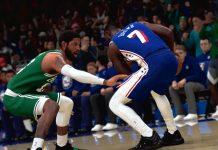


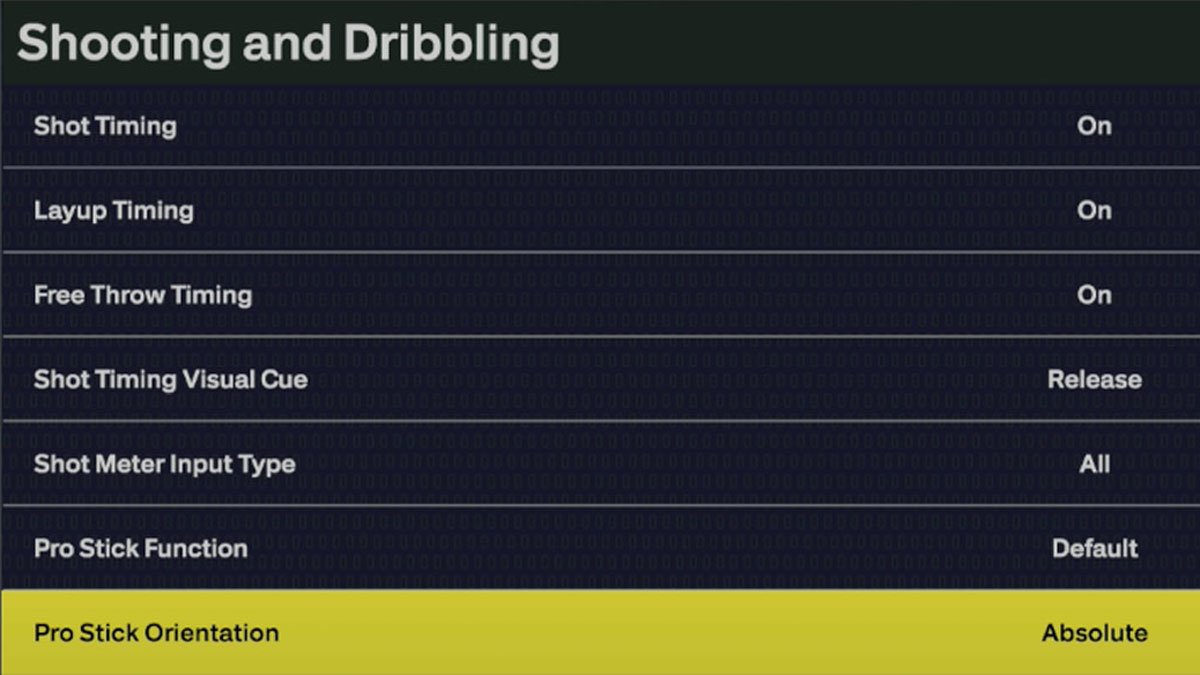
NBA 2K26 Controller Settings let you customize how the game responds to your inputs and fine-tune the experience for your style of play. Having the best setup can significantly impact shooting, dribbling, defense, and overall gameplay, so be sure to check out every controller setting option – as well as our expert controller settings recommendations for NBA 2K26.
Shooting and Dribbling
Shot Timing
- Description: Determine if user timing affects shots in-game
- Options: Off, On
- Recommendation: Set to ‘On’ so that User Timing affects the outcomes
Layup Timing
- Description: Determine if user timing affects layups in-game
- Options: Off, On
- Recommendation: Set to ‘On’ so that User Timing affects the outcomes
Free Throw Timing
- Description: Determine if user timing affects free throws in-game
- Options: Off, On
- Recommendation: Set to ‘On’ so that User Timing affects the outcomes
Shot Timing Visual Cue
- Description: Set the ideal release point for jump shots when shooting with the shot button
- Options: Jump, Set Point, Push, Release
- Recommendation: User preference, depends on each jumpshot and your personal visual cue preferences.
Shot Meter Input Type
- Description: Choose when the Shot Meter is displayed based on the type of controller input
- Options: Shot button Only, Pro Stick Only, All
- Recommendation: User preference
Pro Stick Function
- Description: Determine the functionality of the Pro Stick
- Options: Default, Dribble Moves, Shots
- Recommendation: Set to ‘Default’ for the flexibility to use RS for both dribble moves and shots
Pro Stick Orientation
- Description: Determine the orientation for the Pro Stick
- Options: Camera Relative, Absolute
- Recommendation: Set to ‘Absolute’ for consistent moves no matter the angle
Passive Dribble Hand Switches
- Description: Determine whether to allow passive dribble hand switches when the left stick is released
- Options: Enabled, Disabled
- Recommendation: User preference
Passing
Skip Pass
- Description: Determine if you want to hold down the primary pass button to target a receiver farther away.
- Options: Enabled, Disabled
- Recommendation: Set to ‘Enabled’
Icon Passing
- Description: Choose between Icon Passing control schemes
- Options: Default, Full Receiver Control, Pass Type Control
- Recommendation: User preference
Icon Lead Passing
- Description: Determine if you want to directionally lead your receiver with Passing Icons
- Options: Off, On
- Recommendation: Set to ‘On’ to have more control over where you want the receiver to catch the pass.
Pass Target Profile
- Description: Use a pass target profile to customize the way pass targeting works
- Options: Default, Openness, Direction, Custom
- Recommendation: User preference
Pass Target Direction
- Description: Determine the weight of pass direction for pass targeting
- Options: 1 thru 98
- Recommendation: User preference or Default settings
Pass Target Distance
- Description: Determine the weight of receiver distance for pass targeting
- Options: 1 thru 98
- Recommendation: User preference or Default settings
Pass Target Openness
- Description: Determine the weight of catch point openness for pass targeting
- Options: 1 thru 98
- Recommendation: User preference or Default settings
Pro Stick Pass Type
- Description: Choose the type of pass you get when using Pro Stick Passing
- Options: Normal, Flashy
- Recommendation: Set to ‘Normal’
Hold Lob Pass Button
- Description: Choose the function of holding down the lob pass button
- Options: Skip Pass, Cut to Basket
- Recommendation: User preference
Auto Lob to Moving Receiver
- Description: Choose whether to allow contextual lob passes to a moving receiver when pressing the primary pass button
- Options: Enabled, Disabled
- Recommendation: Enabled if you’re advanced for more control, or Disabled if you’re a beginner
Off-Ball
Off-Ball Offense Mode
- Description: Determine the orientation for off-ball moves
- Options: Camera Relative, Absolute
- Recommendation: Set to ‘Absolute’ for consistent moves no matter the angle
Call for Pick And Roll Vs Fade
- Description: Determine if AI will auto select to roll or fade according to players tendencies.
- Options: Auto, Manual
- Recommendation: Set to ‘Manual’ for more control
Receiver Control
- Description: Choose how you want to control the receiver when holding the bounce button.
- Options: Receiver Get Open, Full Receiver Control, Handoff/Pitch Pass
- Recommendation: User preference
Defense
Help Defense Button Function
- Description: Determine the functionality of the help defense button
- Options: Call For Help, Double Team
- Recommendation: User preference
Shading Indicator
- Description: Turn the on-ball shading indicator on or off
- Options: Off, On
- Recommendation: Set to ‘On’ to see shading indicator in action
Who To Guard
- Description: An in-game indicator telling you who to guard in defensive situations
- Options: Off, On
- Recommendation: Set to ‘On’ if you’re a beginner, set to ‘Off’ if you’re advanced and want less distraction
Pro Stick Defense
- Description: Determine the orientation when using the Pro Stick to play defense
- Options: Camera Relative, Absolute
- Recommendation: Set to ‘Absolute’ for consistent defensive moves no matter the angle
Double Team Reaction
- Description: Determine when offensive team detects and reacts to a double team
- Options: Auto, Manual
- Recommendation: Set to ‘Manual’ for more control
Icon Swapping
- Description: Choose between Icon Swapping control schemes
- Options: Switch Matchup On Long Press, swap Controls Only
- Recommendation: Swap Controls Only
Controller Functions
Vibration
- Description: Turn the vibration on or off
- Options: Off, On
- Recommendation: Set to ‘Off’ if you want less distraction
Boxout Assist Strength
- Description: Determine the effectiveness of AI boxout assistance
- Options: 0 thru 100
- Recommendation: Set to ‘0’ for more user control and responsiveness for rebounding
Player Icons
- Description: Determine if you want the buttons to appear on screen when using Icon Passing
- Options: Off, On
- Recommendation: Set to ‘On’